 Riel Studio Docs
Install
Download and install Riel Studio. Takes about two minutes.
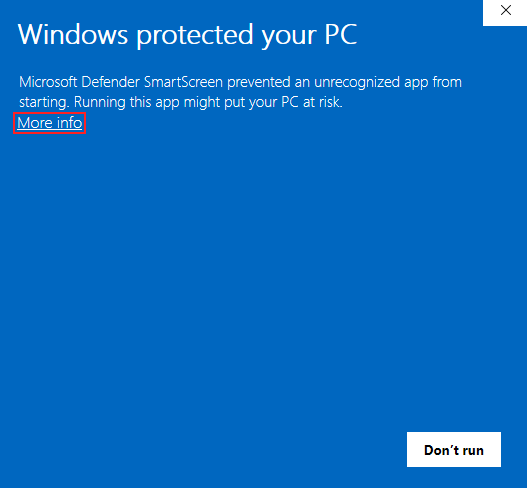
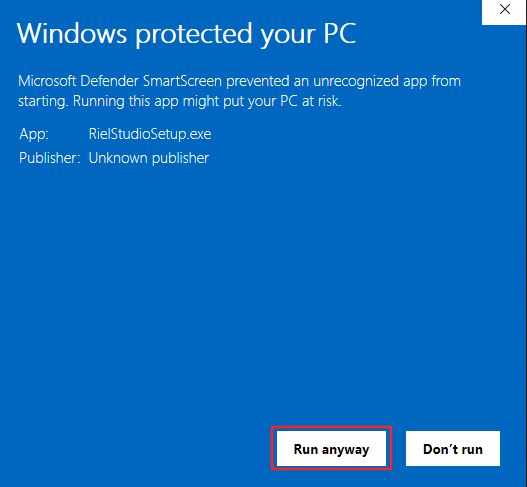
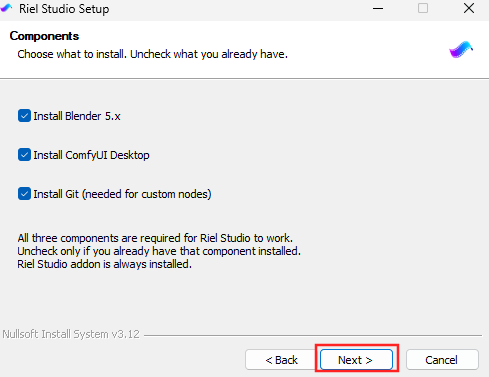
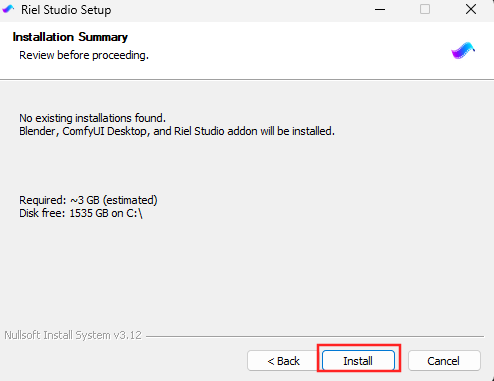
Why does this warning appear?
Windows blocks apps it doesn't recognize yet. This has nothing to do with safety — it's just because the app is new.
We're adding code signing soon, and the warning will disappear automatically.
Activate
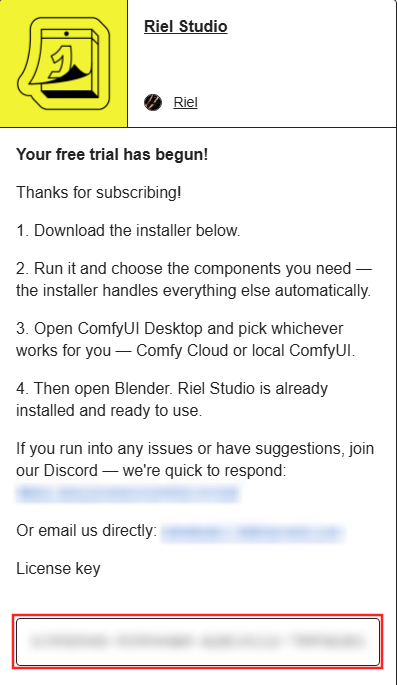
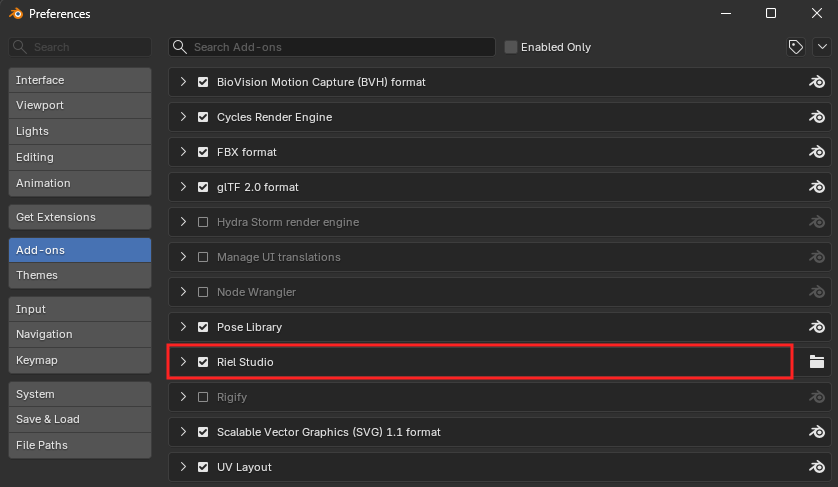
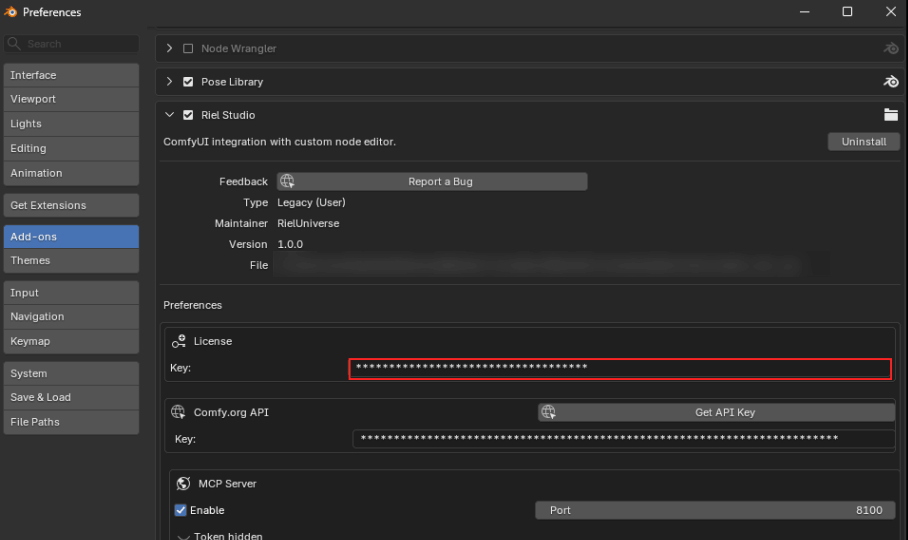
Enter your license key to unlock all features.
Connect
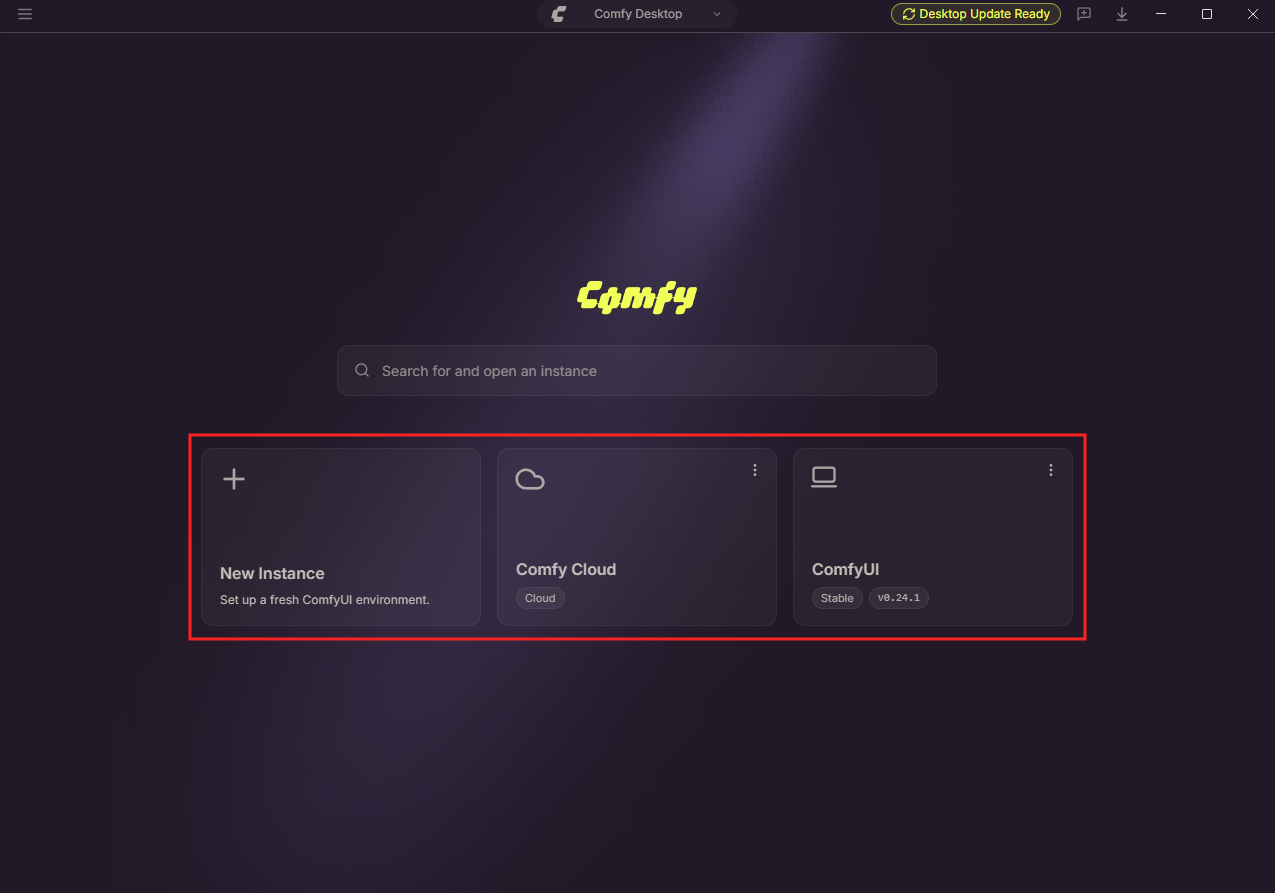
Link Riel Studio to ComfyUI Desktop.
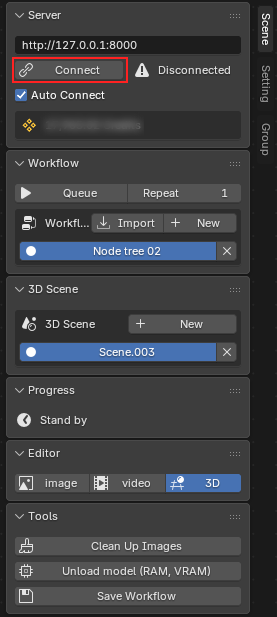
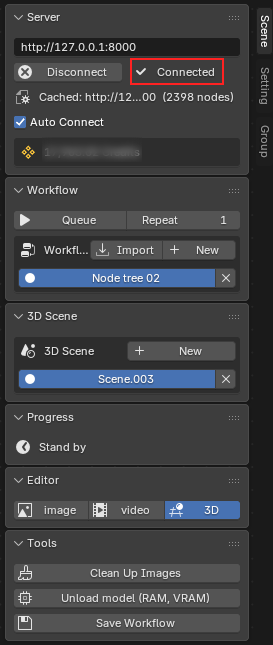
Can't connect?
Check ComfyUI is running. The server must be active before you connect.
Check the port. Default is 8188. Update the port in Server tab if you changed it.
Check your firewall. Allow Blender and ComfyUI through your firewall.
Restart both apps. Open ComfyUI first, then Blender.
Run Your First Workflow
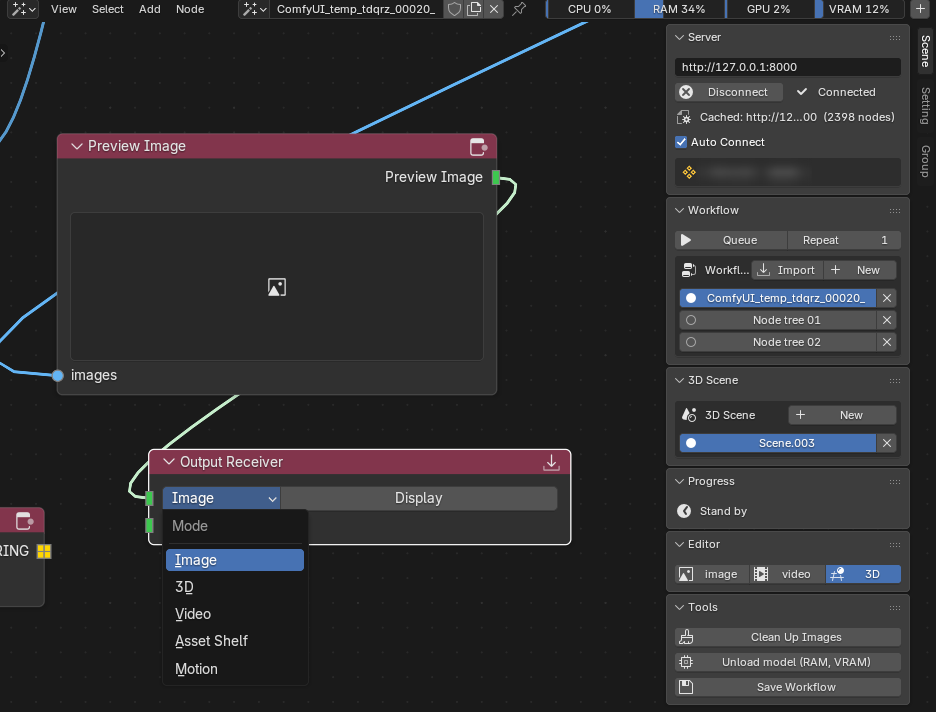
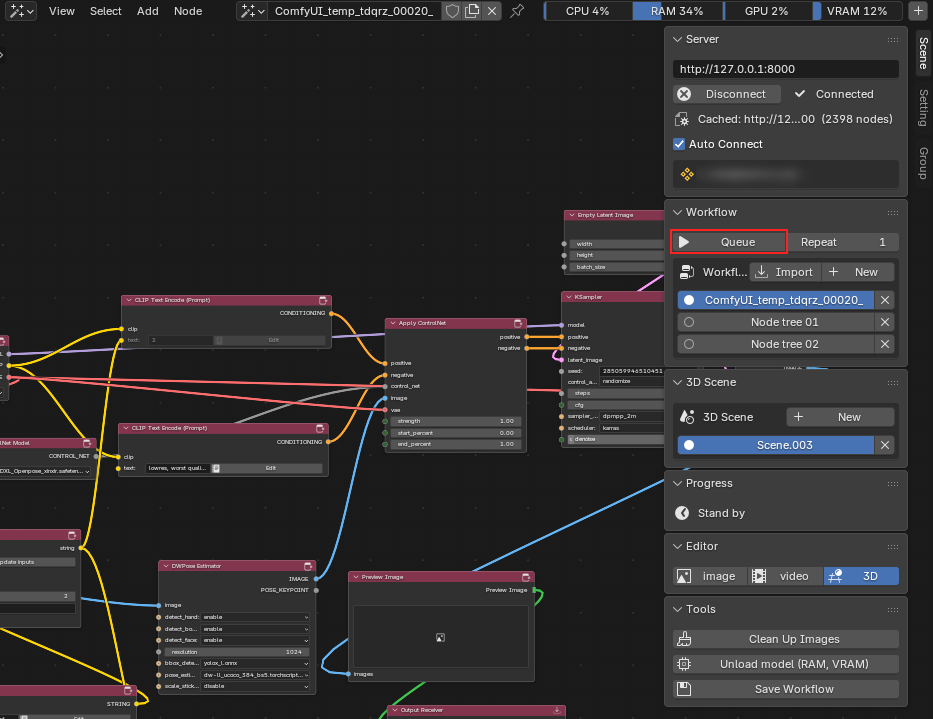
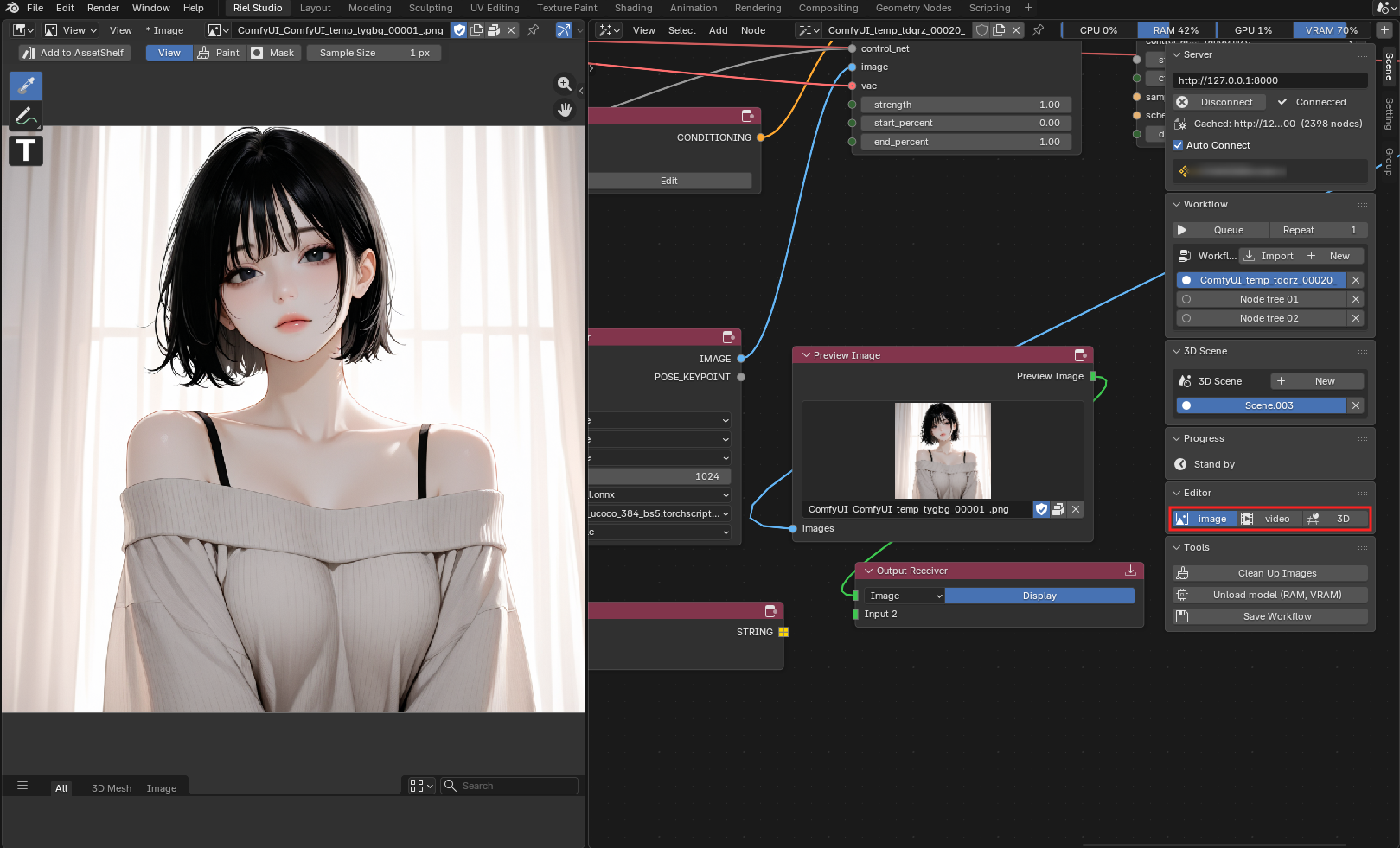
Import a workflow and generate your first result.
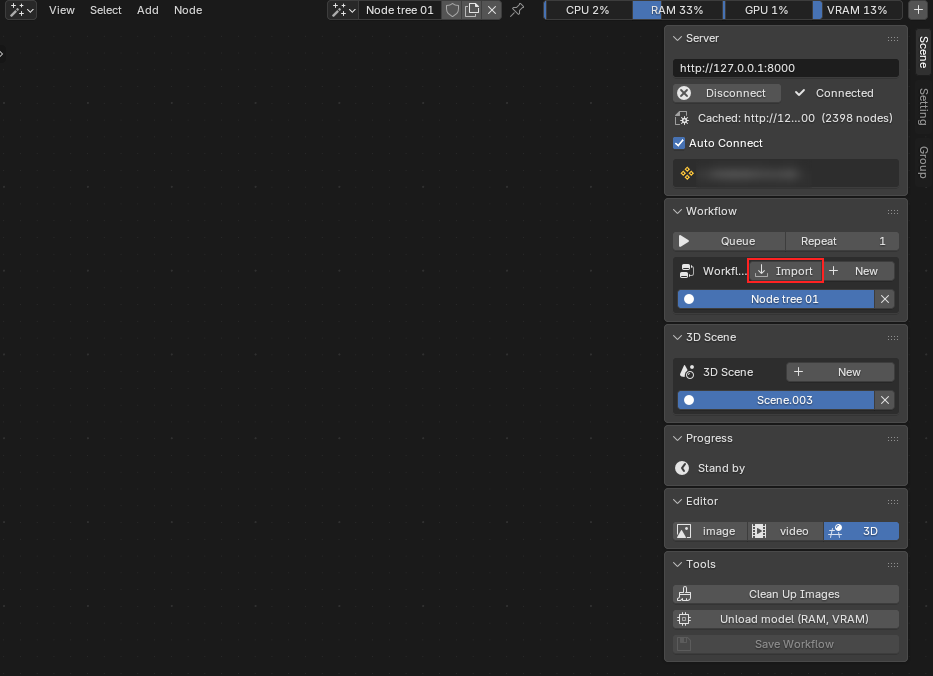
.json file and select it. Click "Import Workflow" to confirm. The node tree builds automatically and appears in the editor.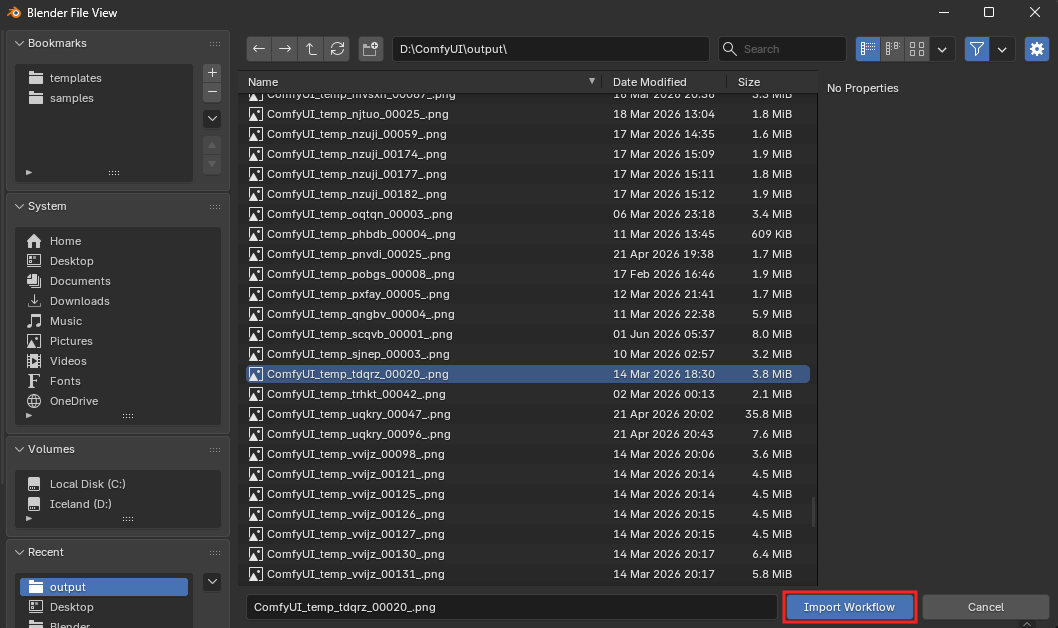
Frame Sequence Node
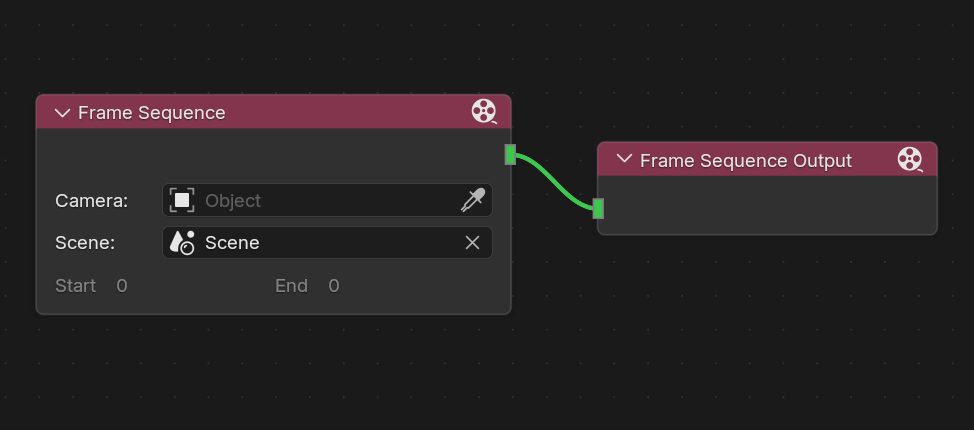
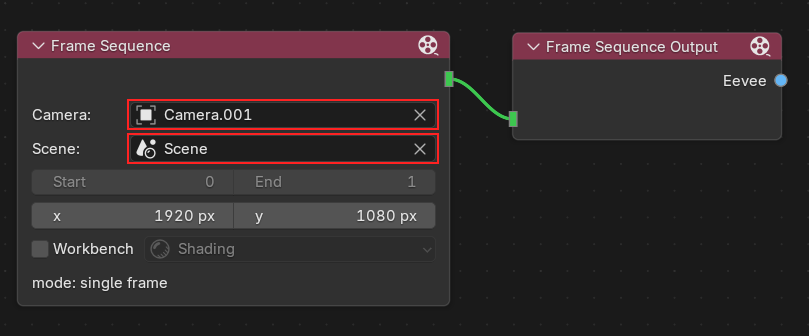
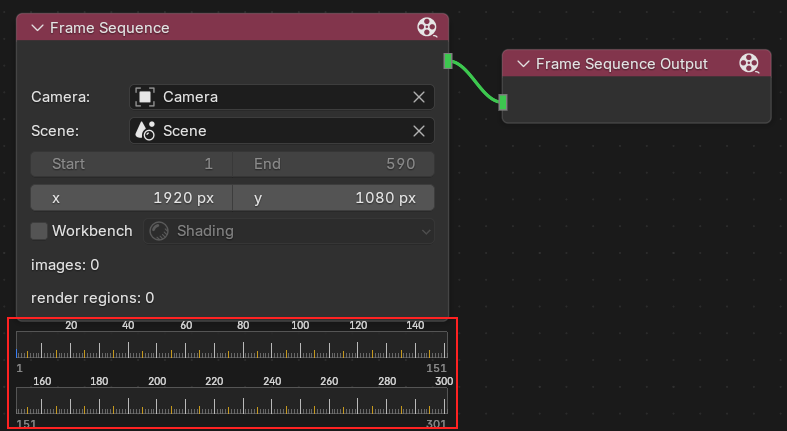
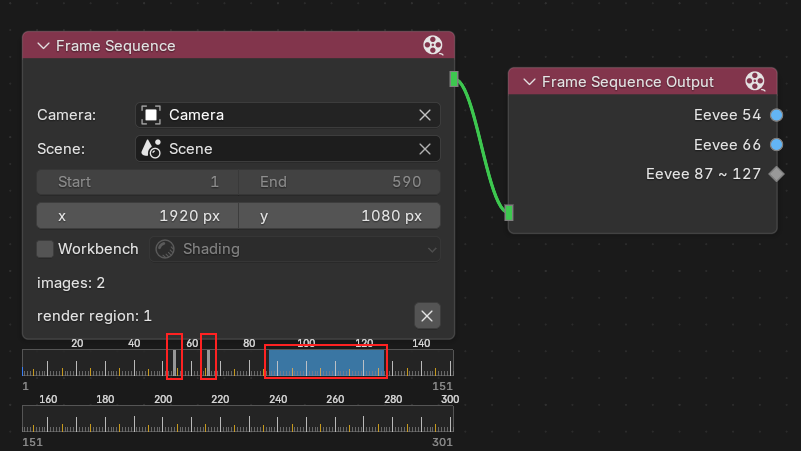
Render what your camera sees, frame by frame, straight into your ComfyUI workflow.
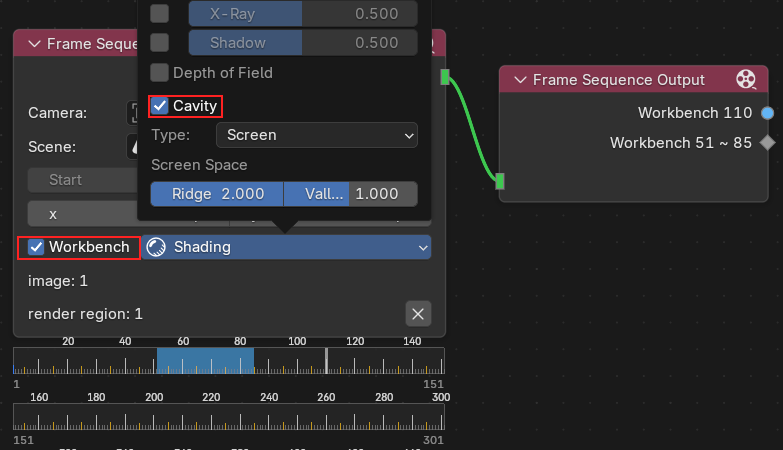
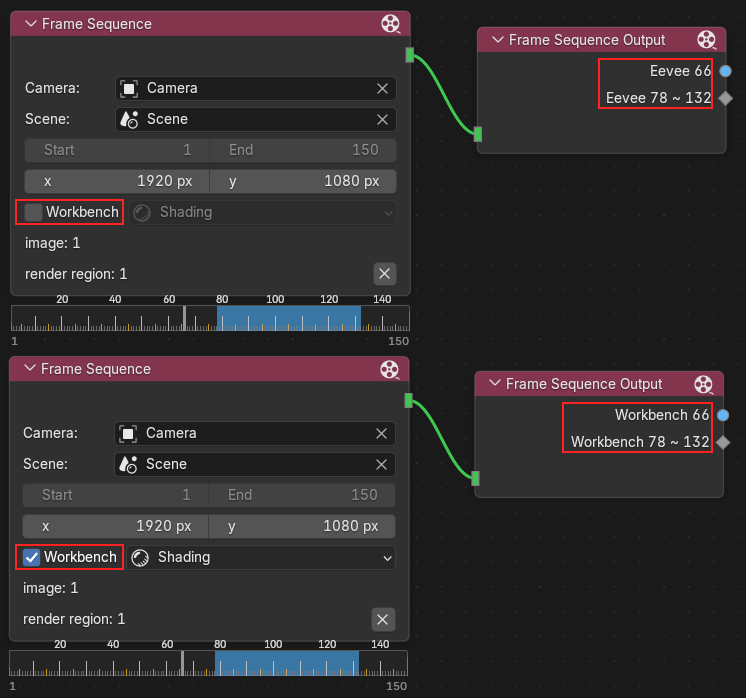
Everything in the Shading popover
Lighting — Studio / Matcap / Flat, plus studio light or matcap choice and world rotation.
Colors — Wireframe Color; Object Color (Material / Object / Single); Background (Theme / World / Viewport).
Options — Backface Culling, Object Outline, Specular Lighting, X-Ray, Shadow, Depth of Field.
Cavity — crevice shading. Type: World / Screen / Both. First time you enable Blockout, Cavity turns on once with Screen Ridge 2.0 so edges read immediately.
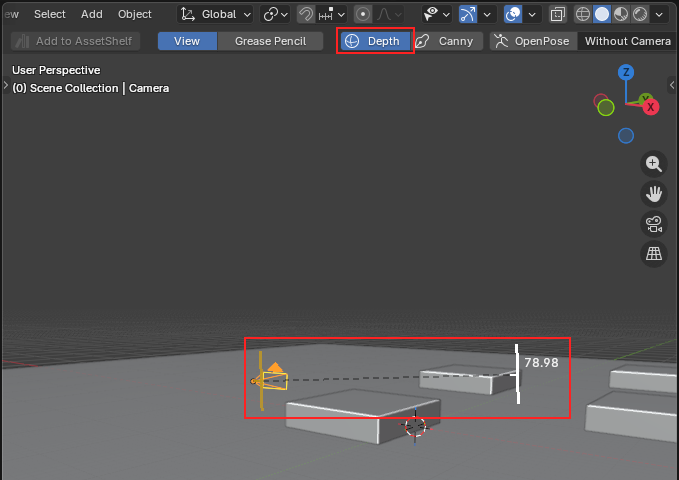
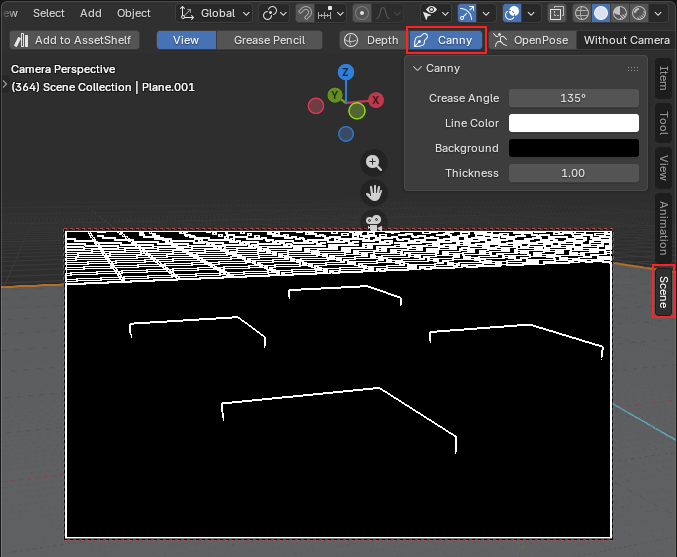
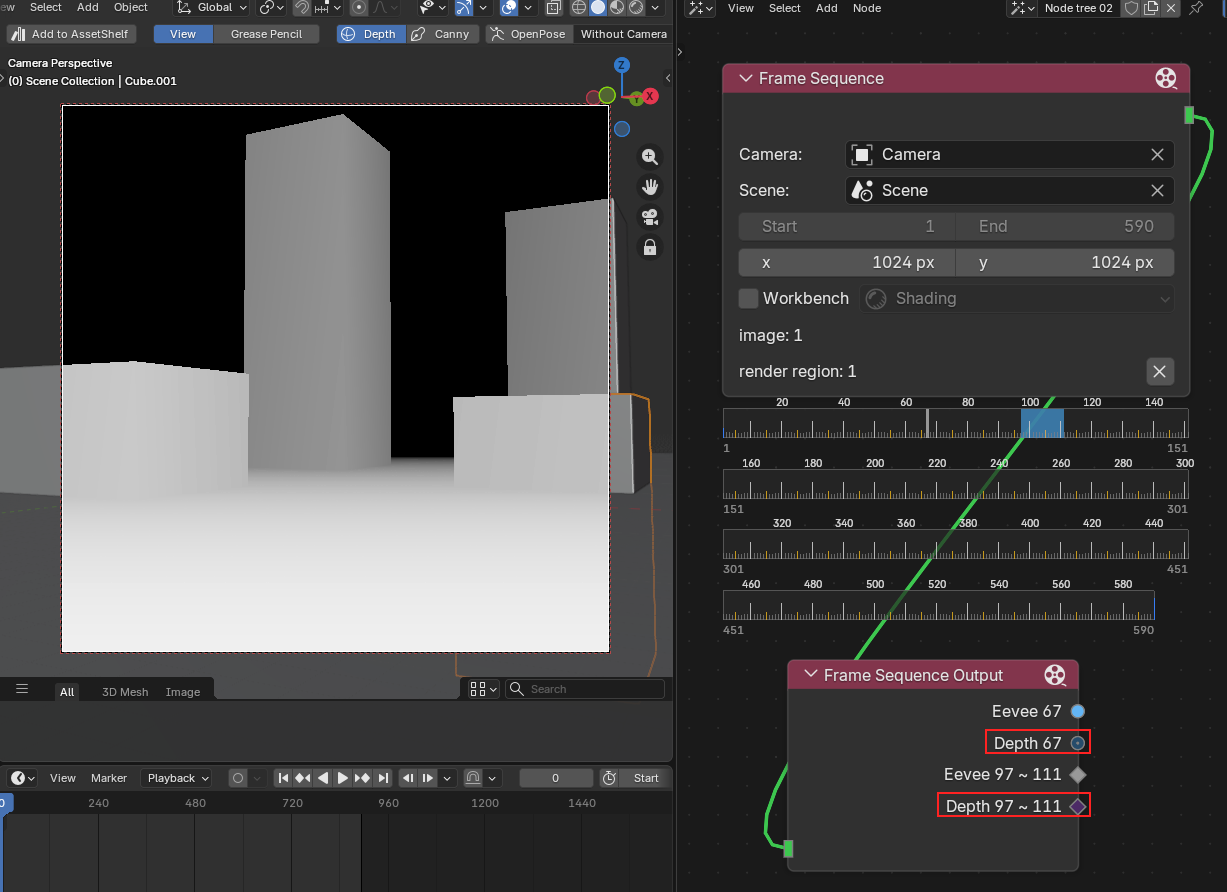
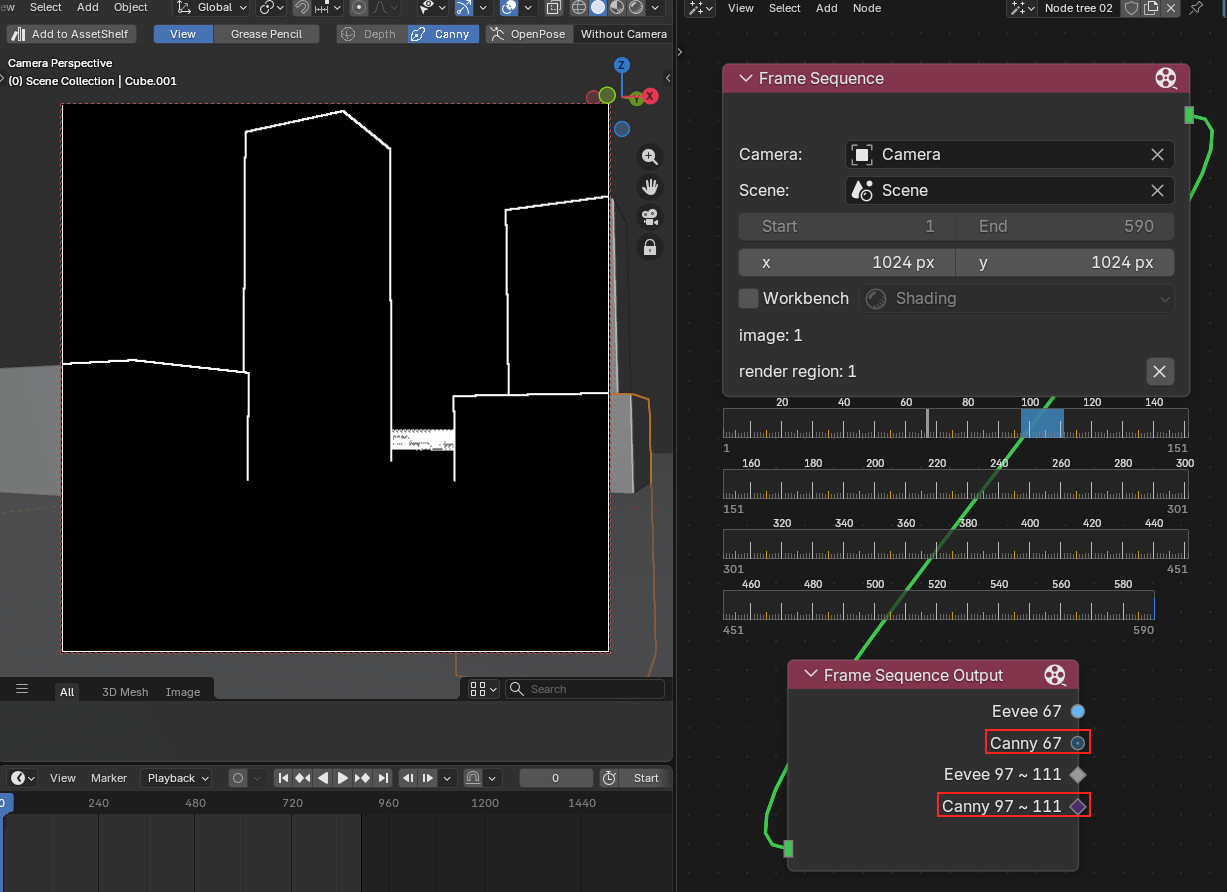
Camera (Depth, Canny)
Add depth maps and edge detection to any camera in your scene.
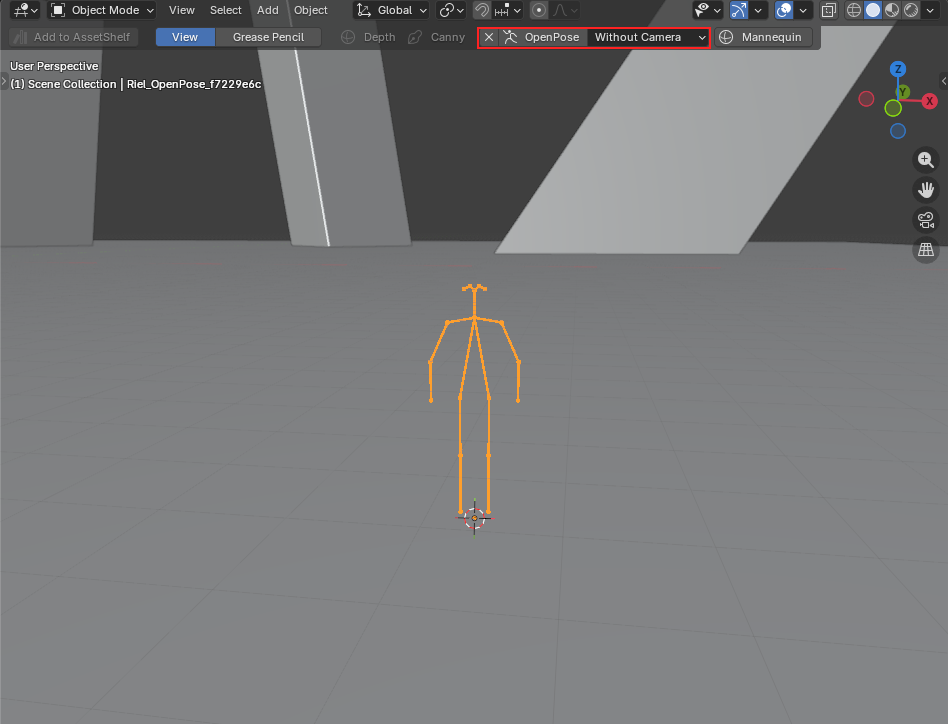
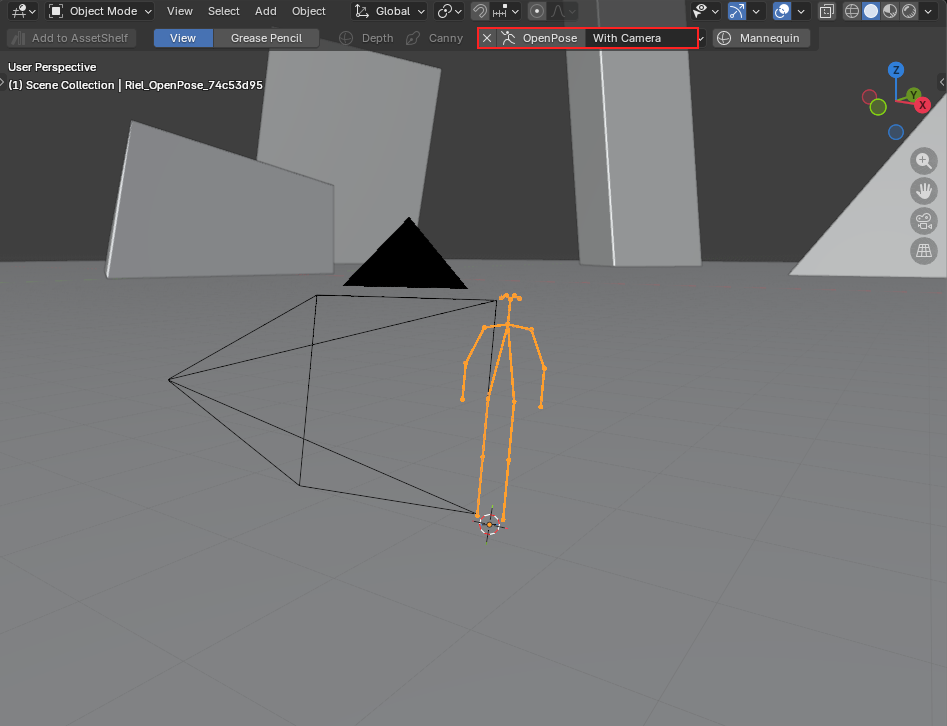
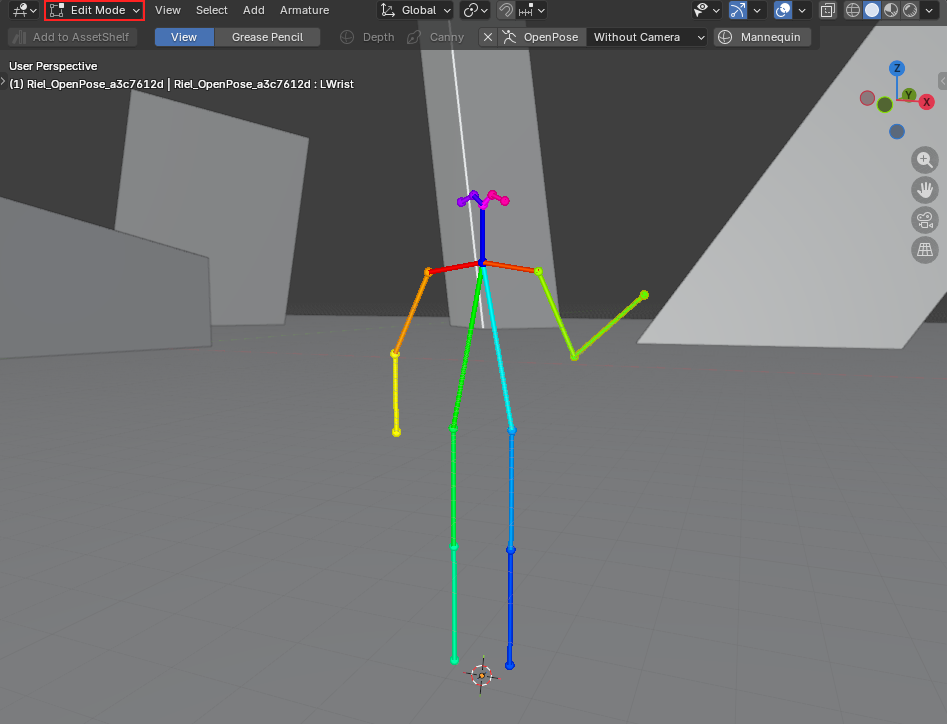
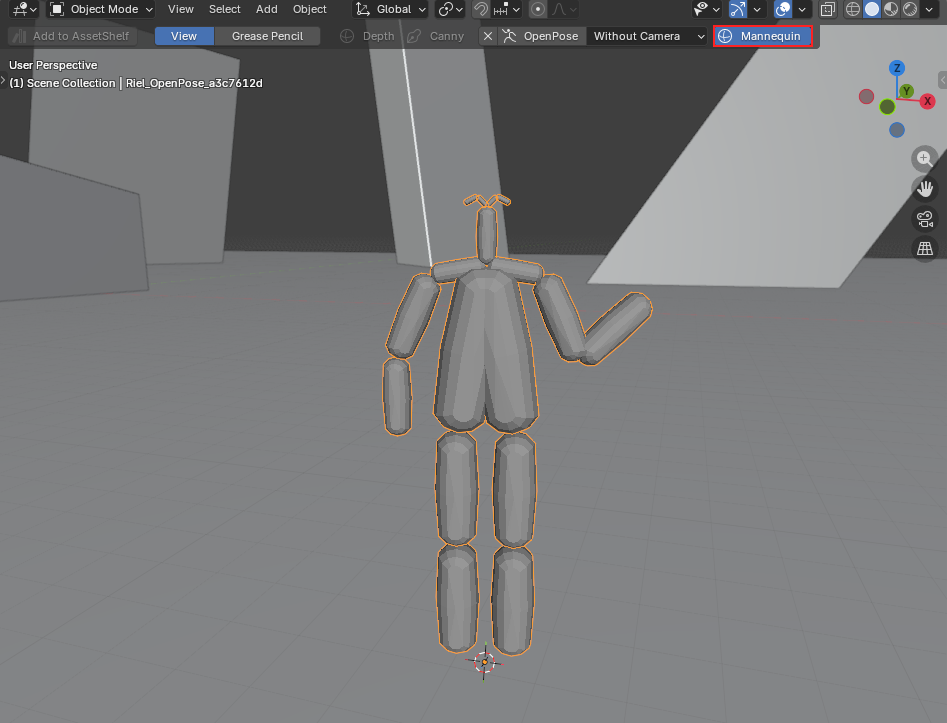
Camera (Openpose)
Create poseable rigs and render them as OpenPose control images.
Claude MCP
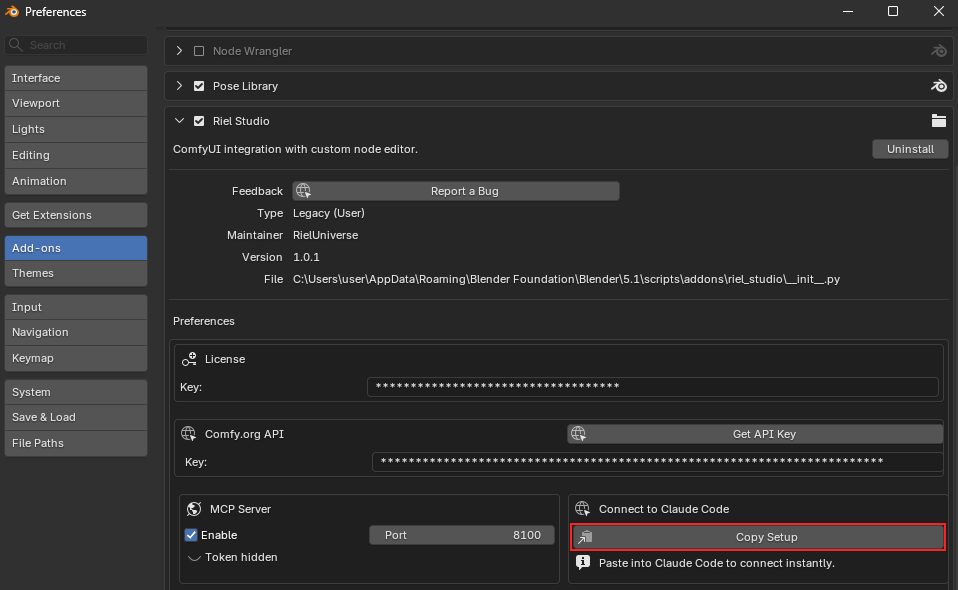
Connect Claude to Blender and control your scene with natural language.
8100. You can also press the eye icon to reveal the generated token.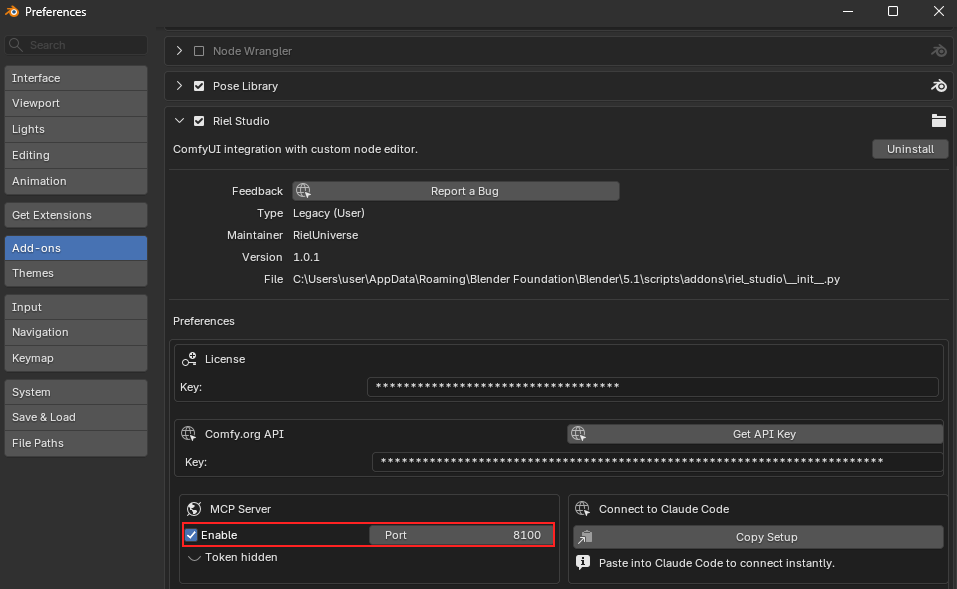
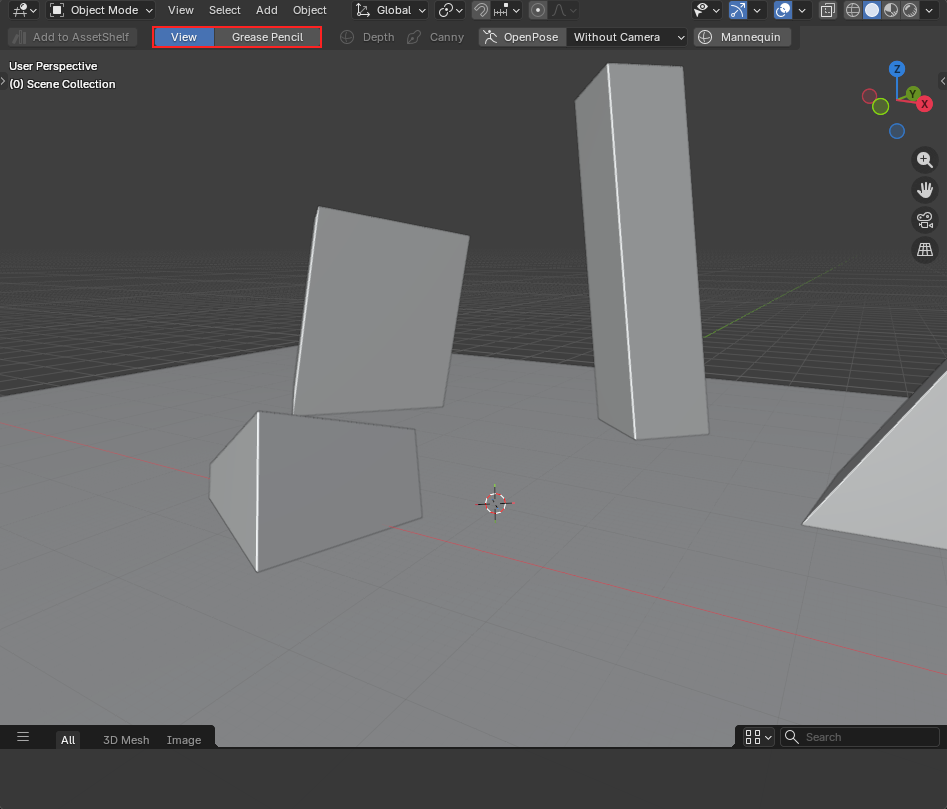
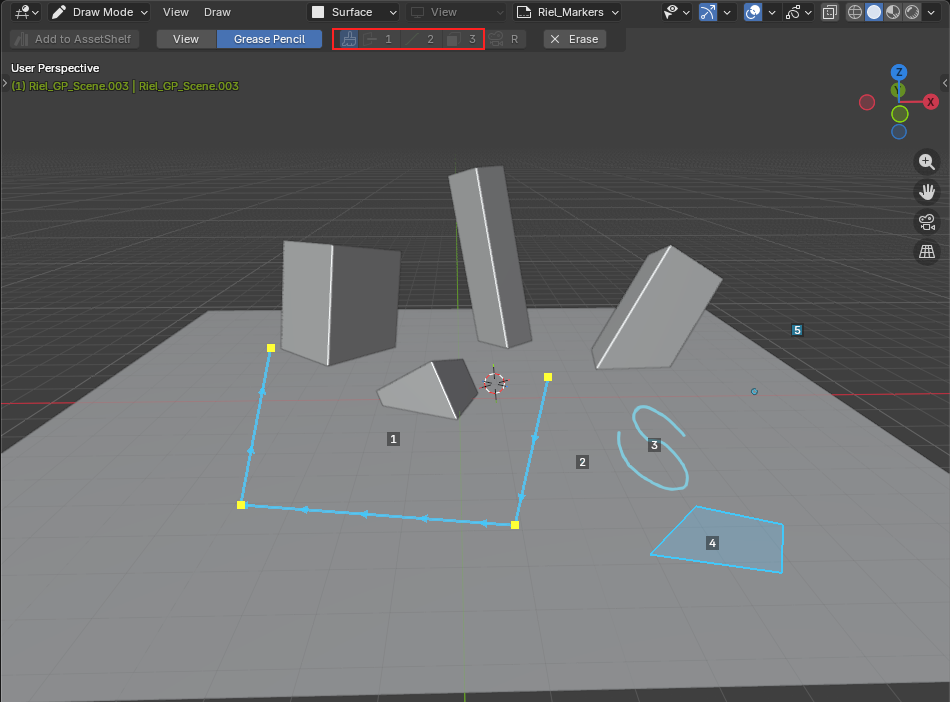
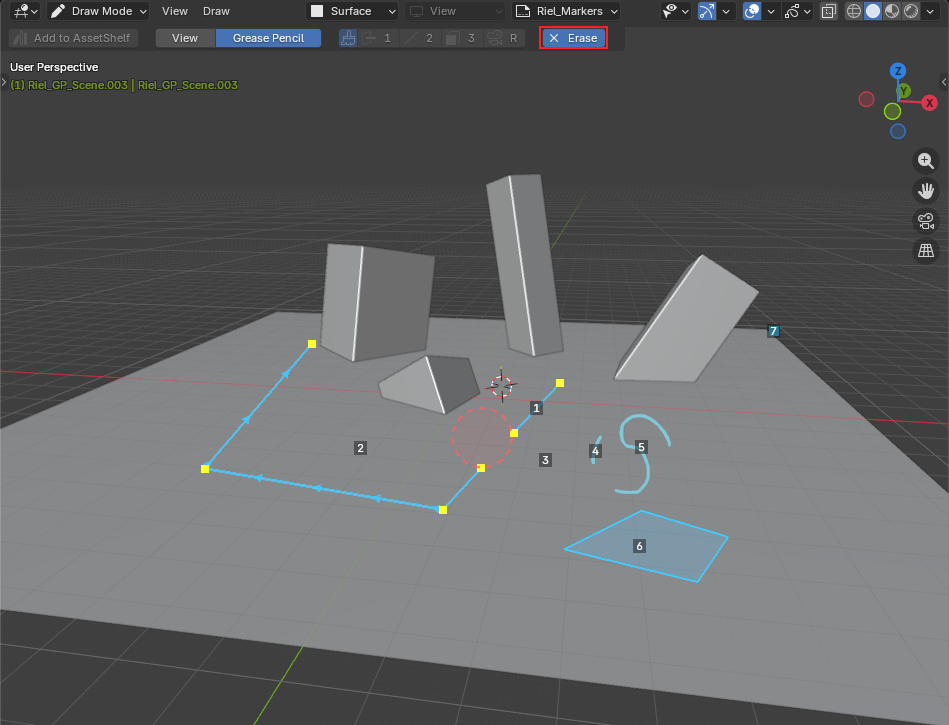
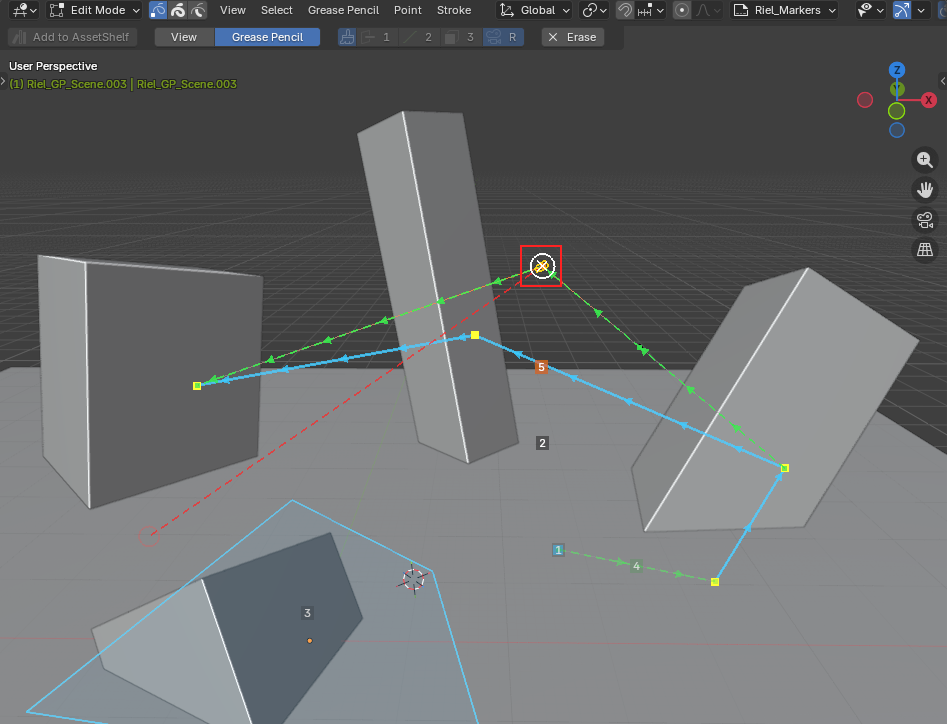
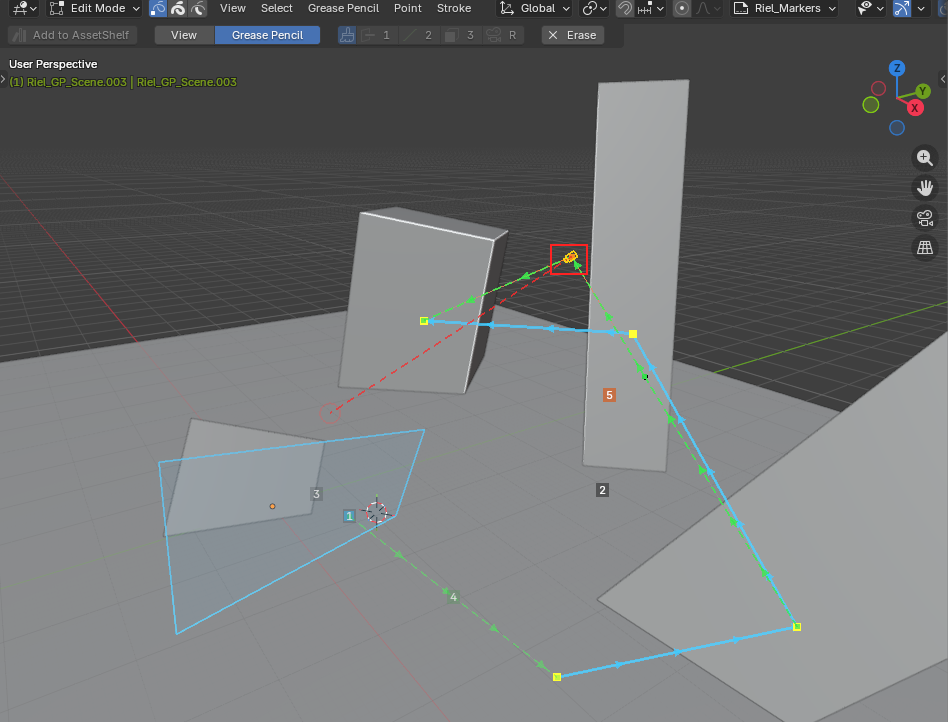
Grease Pencil
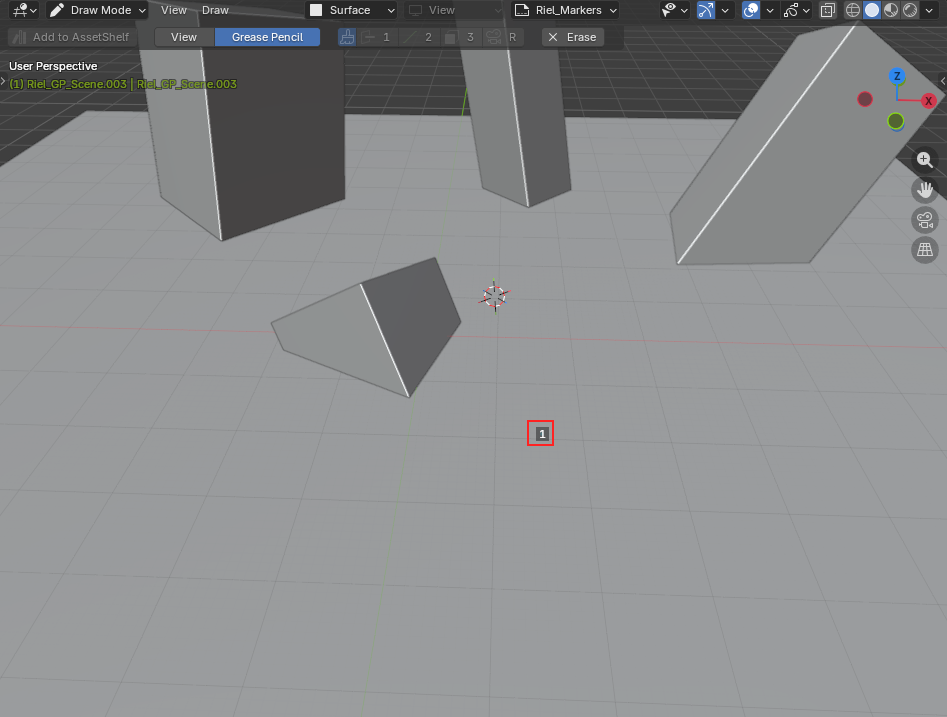
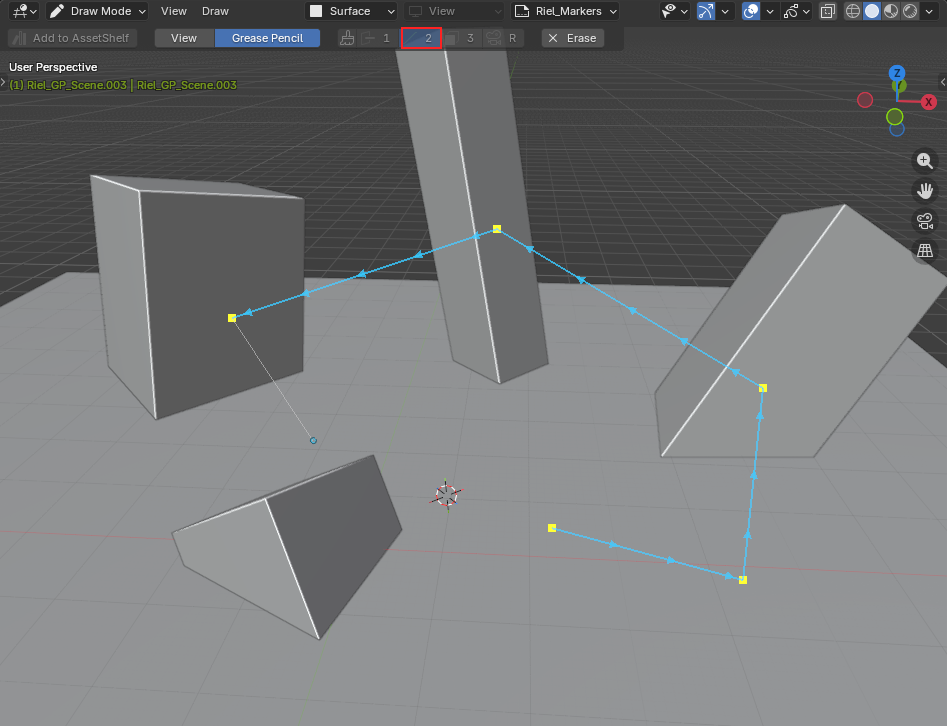
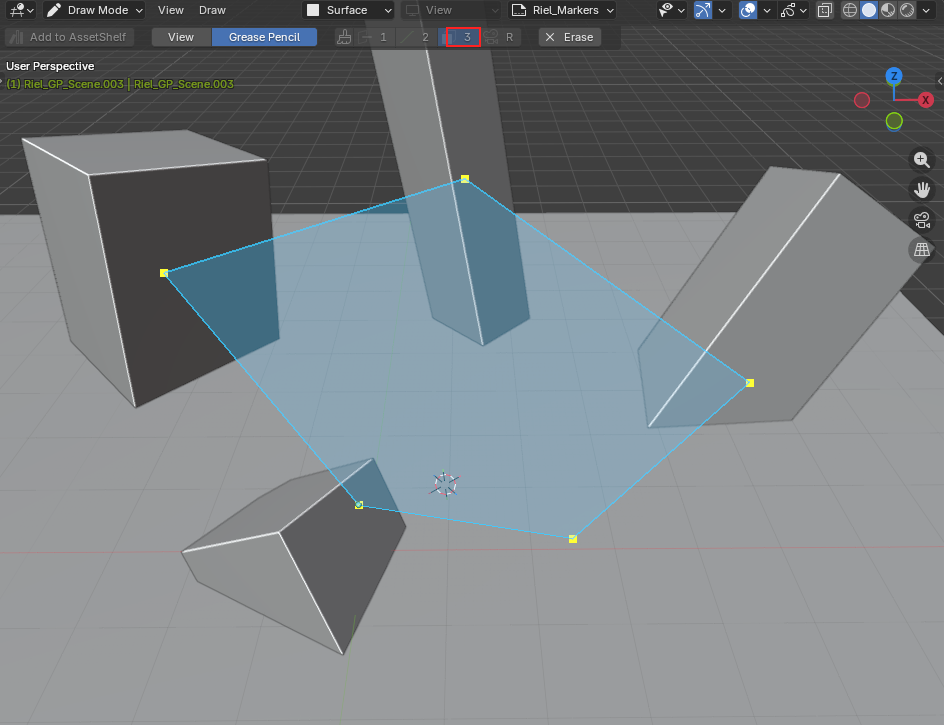
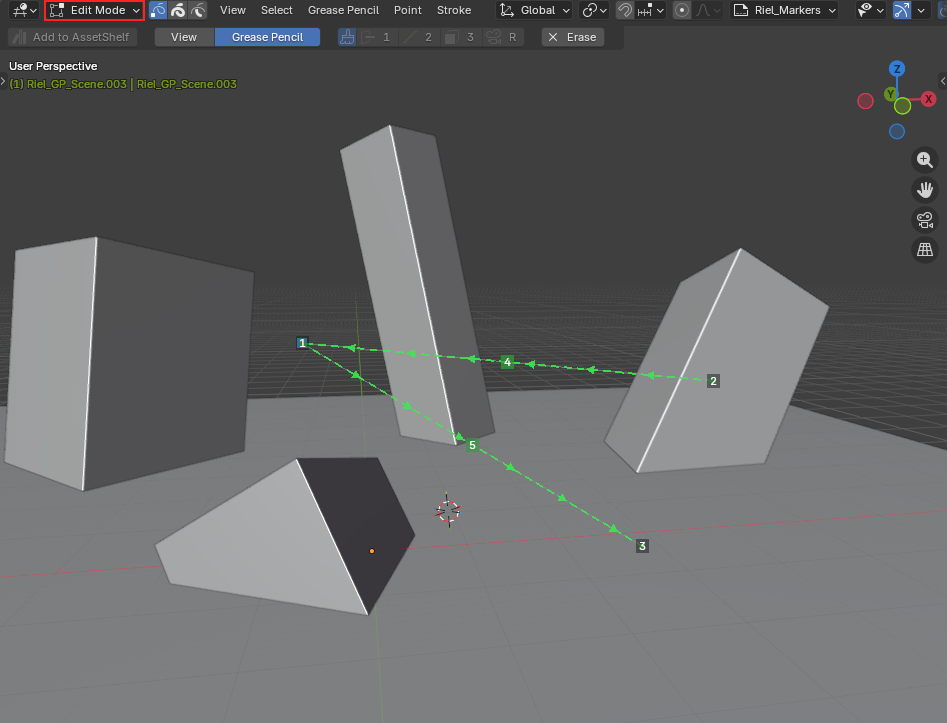
Draw points, lines, and shapes on mesh surfaces for Claude MCP to read.
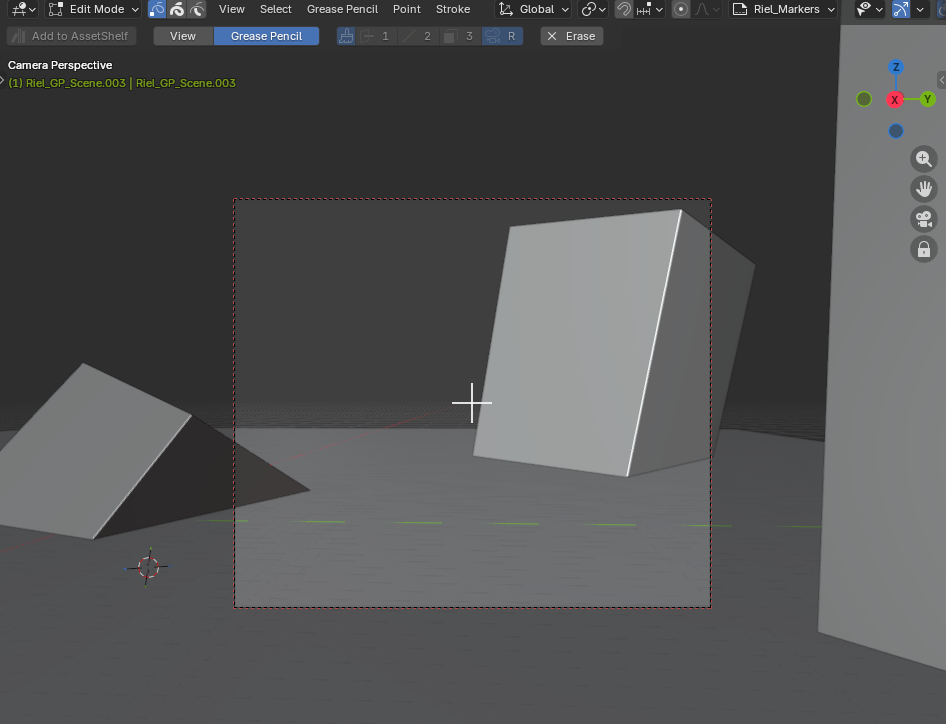
Camera Markers
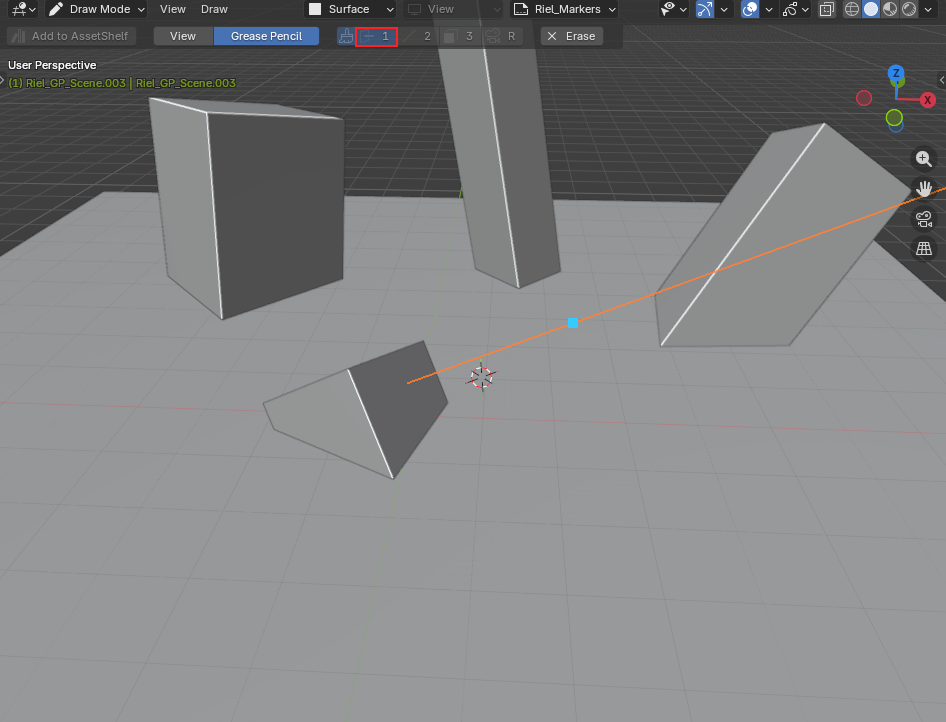
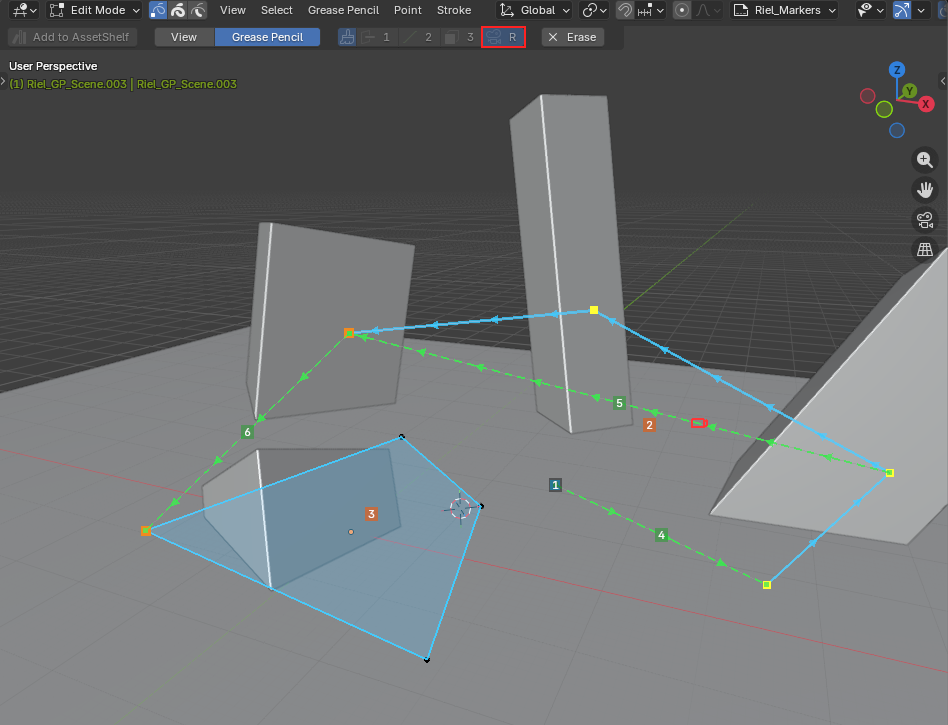
Place and aim cameras along your Grease Pencil paths.
You're all set!
Join our Discord for tips, workflows, and community support.
FAQ
Common issues and quick fixes.
Nodes are not showing up
Make sure the .json file is a valid ComfyUI workflow.
Check that ComfyUI has all required custom nodes. Missing nodes show as red boxes.
Restart Blender after installing new custom nodes.
Update failed
When a new version is available, an update notification appears automatically inside Blender. You can choose to update right away or skip it.
Close Blender completely before updating — an open Blender locks the add-on files.
Your license key stays active — no need to re-enter it.
If the update still fails, uninstall first (see below), then try again.
I can't type into Start / End
That's by design. Start and End are computed automatically from your camera's keyframe range.
Move or add camera keyframes and the values update on their own.
Depth and Canny won't turn on together
Intended behavior — they work like radio buttons, one at a time.
Turning one on turns the other off.
I can't see my MCP token
Check Enable in the MCP Server box first, then click the eye icon next to "Token hidden".
How to uninstall
Close Blender first.
Open the Riel Studio installation folder and run the uninstaller inside it.
The uninstaller lets you choose which components to remove — keep your settings and workflows, or wipe everything.